

How updates work
Update replaces the version a running instance serves. Every instance reports anupdate_strategy that says how:
- Blue/green (CPU-only and single-GPU instances without persistent volumes): the new version boots alongside the current one and traffic switches atomically once it is running. If the new version fails health checks, the current one keeps running, so there is nothing to roll back. When held for review, a ready candidate waits for you to promote it instead of switching traffic automatically.
- Replace (multi-GPU instances and instances with persistent volumes): the host cannot run two copies, so the running enclave stops first and the new version deploys in its place. The instance is unreachable until the new version is running. The dashboard and CLI ask you to confirm the downtime before starting, and the API requires
confirm_downtime: true.
blue_green.
Update applies only to running instances. To bring up a stopped or failed instance, use Deploy; see Instance lifecycle. To run the same version on a fresh enclave, Update a blue/green instance to its current tag (no downtime), or Stop and then Deploy any instance (downtime).
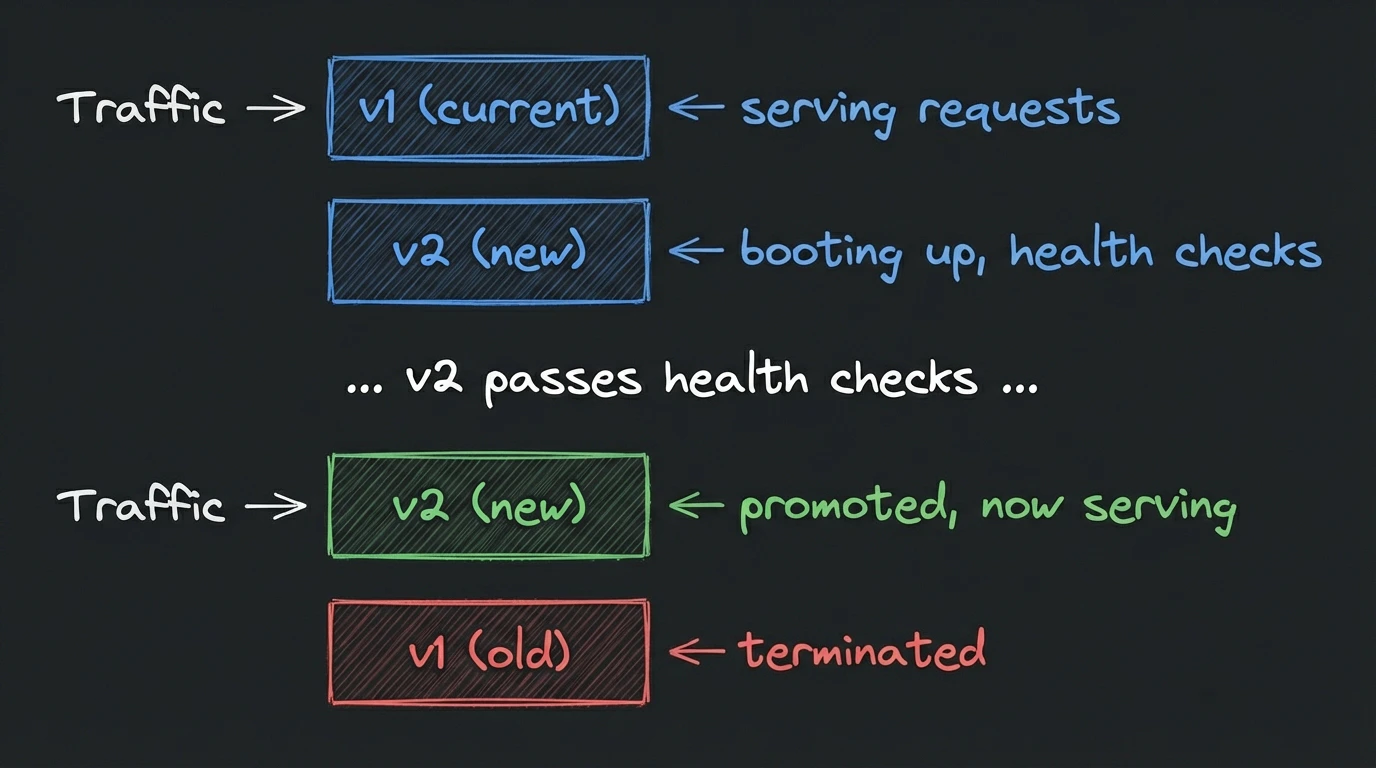
Starting an update
An update has two stages: publish a deployable release from your config repo, then roll that release out to the running instance.1. Publish a release
Choose one of these approaches:-
Dashboard: Open the repository’s config editor under Containers, edit
tinfoil-config.yml, open and merge the generated pull request, then follow the Release steps. See the quickstart for the full walkthrough. -
GitHub directly: Commit the config change, then run:
You can also use Actions → Tinfoil Release → Run workflow in the GitHub UI.
tinfoil-release.yml, then measurement, attestation, and publication in tinfoil-release-publish.yml. Confirm the same tag has a published release. A queued run or a tag alone is not deployable; if either workflow fails, inspect its logs before proceeding.
2. Roll out the release
In the dashboard, click Update on the instance and select the new tag. From the CLI, run:container update.
Reviewing the change
The dashboard’s review step and the CLI’s update plan compare the current instance with the target release, including:- Current and target tags and CPU, RAM, and GPU resources.
- Blue/green versus replacement, and whether downtime is required.
- The effective hold value, whether it comes from the project or an explicit override, and whether holding is available.
- Added, changed, and removed variable, secret, and SSH-key names, plus settings such as debug mode or custom domain. Secret values are not displayed.
- Retained volume data and the repository-wide effect of marking GitHub latest.
keyserver-url, the API plan also reports secret delivery: managed names and external declarations are separate. The plan does not contact your keyserver or verify secret existence, release authorization, TLS, attestation, or disk unlock. Before switching from managed or debug delivery, explicitly clear the instance’s managed selection; a project update cannot clear it for you. Do not upload private values to make a plan pass.
Updating a project
A project contains all instances in your organization that use the same config repository. Update every running instance to one tag with:--instance with their instance UUIDs:
hold_by_default=false. Individual and project updates use that saved setting unless an explicit --hold=true or --hold=false overrides it for one rollout. If preflight finds an eligible instance whose target release requires replacement, a requested hold is rejected before any instance is updated.
If any selected instance must be replaced, the dashboard and CLI list those instances and ask you to confirm the downtime before any instance is updated.
Marking the tag as the repository’s latest GitHub release defaults to true and happens once a changed tag is running and serving production, or after promotion for a held version. It applies only to a non-debug instance when the GitHub App is connected and the repository is active. Pass --mark-latest=false to leave the latest release unchanged. Admin API callers who omit mark_latest_release also get the true default.
This changes the repository-wide latest release, not just the selected instances. It can affect other consumers that follow GitHub’s latest release. It does not update those instances automatically, and a repository-only verification reference is not an instruction to follow latest; use an explicit owner/repo@tag pin when you require a particular release.
Only running instances are updated. Stopped and failed instances are skipped (bring them up with Deploy), as are instances that are already updating. The CLI reports each result and exits non-zero if any selected instance is skipped or fails.
Update statuses
The instance’s status describes the version currently serving traffic. During a blue/green update, the new version has a separate status:Multi-container configs
If onetinfoil-config.yml defines multiple processes in its containers section, they run in the same enclave and update together. This is separate from a project containing multiple independently deployed instances.
Rolling back
To revert to a previous version, click Update, pick an older Git tag, and review the change before confirming. Blue/green instances keep serving until the older version is running. Instances that must be replaced go down while the older version deploys. Choose Use an older release / rollback intent — leave GitHub latest unchanged (or pass--mark-latest=false) so the older tag is not marked as the repository’s latest release.
This is an update to an older release, not restoration of a historical snapshot. The target tag supplies its measured config and image; omitted per-instance settings keep their current saved values, selected secrets resolve to their current values at deployment, and persistent disks retain their current contents. Check application/data compatibility and authorize the older tag in your keyserver policy if you use private secrets. A rollback does not undo a database migration or restore old secret values.
Canceling an in-progress update
For a blue/green update, click Cancel update to stop the new version and keep the current one running. The new enclave is torn down and no traffic switches. Cancel also clears a failed update. Updates that replace the running enclave cannot be canceled once the current instance has stopped.GPU container updates
Single-GPU instances without persistent volumes update blue/green like CPU containers. The new version needs a free GPU on the same host; if none is free the update is refused withHOST_GPU_BUSY and the running instance is untouched. Wait for another instance on the host to stop or finish updating, or stop this instance and deploy the new version with downtime.
Multi-GPU instances (gpus: 8) use all GPUs on the host, so there is no room for a second copy. The running instance stops and the new version deploys in its place, which means downtime while the old enclave stops and the new one boots and loads your model. The new version can use a different repository tag, but these updates cannot be held for review or be canceled once the current instance has stopped. DNS records are kept in place so clients reconnect automatically once the new version is running.
If a multi-GPU update fails, the instance is left in a failed state; deploy it again.
Updates with persistent volumes
Instances that declare or have attached persistent volumes replace the running enclave during an update. The old enclave must release its disks before the new one can use them, so these updates have downtime and cannot be held for review; you confirm the downtime before the update starts. Saved volume attachments and data are retained; unlock the volumes again at boot, either through your keyserver or your application’s manual flow. Rolling back the release changes the application version, not the volume’s contents. Detach a volume while the instance is stopped before removing its mount from the config. See volume lifecycle.Updating without a new tag
To apply modified secrets or configuration to a running instance, click Update and select Edit instance. The form opens pre-populated with the instance’s current configuration. Blue/green instances switch over without downtime; instances that must be replaced go down while the new configuration deploys, and the form says so before you submit. This is also how you pick up updated secret values. The dashboard shows a stale secrets indicator when an update is needed.Recovering from a failed update
- New version fails health checks: For a blue/green update, click Cancel update. Deploy a debug mode instance with the new tag to investigate, fix the issue, then retry the update. A failed replacement for a multi-GPU instance or an instance with persistent volumes leaves the instance in a failed state; click Deploy to bring it up again.
- Update stuck in Pending, Deploying, or Started: the new version follows the same lifecycle as a fresh deployment. See instance troubleshooting.